Two-factor sign-in and passkeys
Everything about signing in safely is in Settings → Security. With two-factor authentication on, a password alone isn’t enough to get into your account.
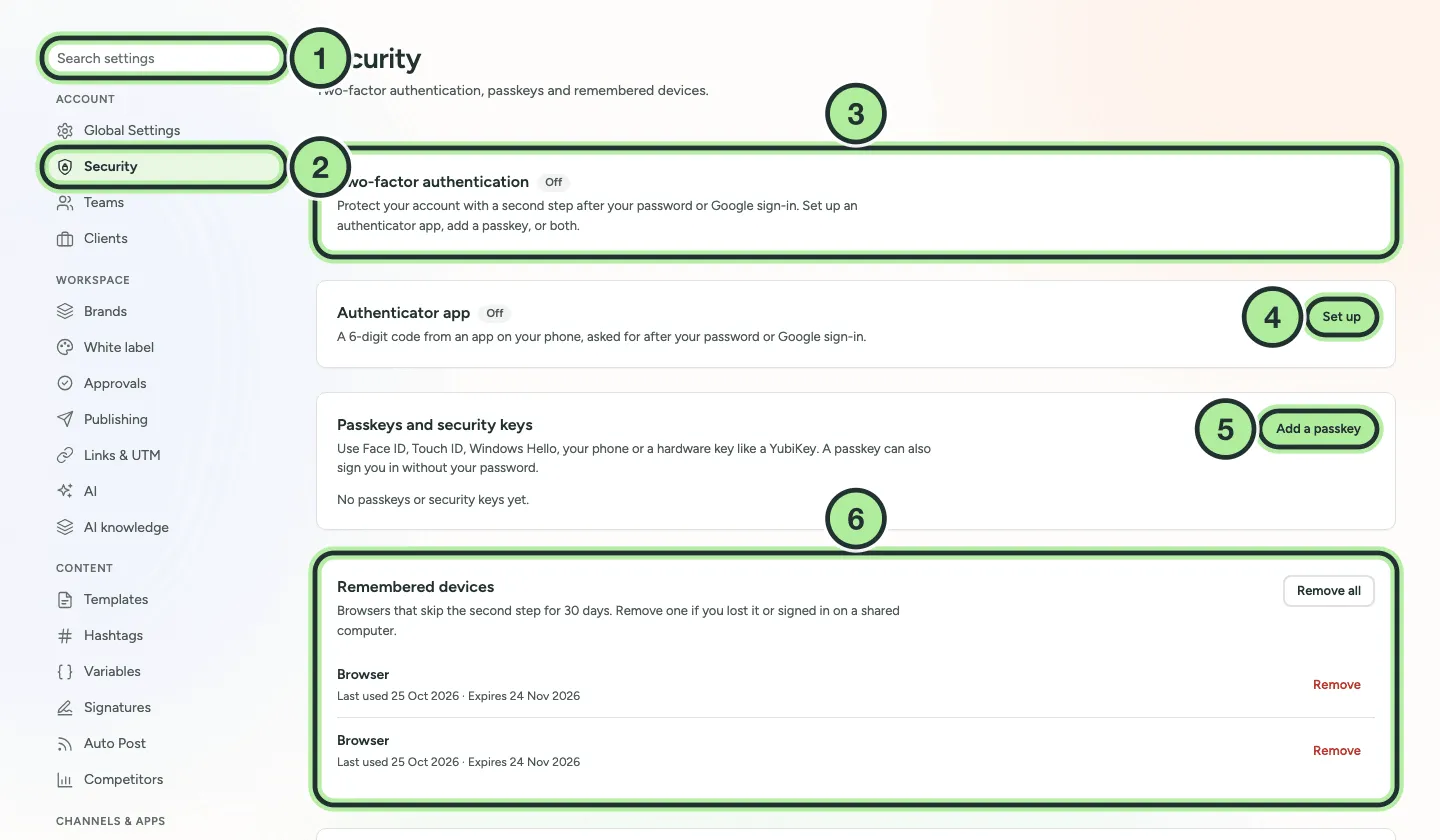
- Search settings.
- Security in the settings list.
- Two-factor authentication: shows On or Off.
- Set up an authenticator app.
- Add a passkey.
- Remembered devices.
Turn on two-factor authentication
Section titled “Turn on two-factor authentication”-
Go to Settings → Security. Find the Authenticator app card and select Set up.
-
Scan the QR code with an authenticator app such as Google Authenticator, 1Password or Authy (or select Or enter this key manually).
-
Enter the 6-digit code under Authentication code and select Verify and enable.
-
Save the recovery codes (Copy codes or Download as text), then select I saved them. Each code signs you in once if you lose your phone.
From now on PostNimbo asks for a code after your password. Tick Remember this device for 30 days to skip the code on a browser you trust.
Add a passkey
Section titled “Add a passkey”A passkey uses your device’s fingerprint, face or PIN, or a security key such as a YubiKey. It can also sign you in without a password.
-
On the Passkeys and security keys card, select Add a passkey.
-
Give it a Name, for example “Work laptop”, and select Continue.
-
Follow your browser’s prompt.
Select Rename or Remove next to a passkey to change it.
The other cards
Section titled “The other cards”- Recovery codes: shows how many are left. Generate new codes replaces the old ones. Lost them along with your app and passkeys? See Lost your authenticator, passkeys and recovery codes.
- Remembered devices: browsers that skip the second step for 30 days. Remove one, or Remove all.
- Email code when signing in from a new browser: emails you a code when you sign in from a browser PostNimbo hasn’t seen. If you have an authenticator app or passkey, that’s asked for instead.
- Require two-factor for this workspace (admins): everyone must set up two-factor authentication before they can use the workspace. Turn it on for your own account first.
- Support access (admins): let PostNimbo support open your workspace for 24 hours or 7 days to help you, and see when they did.
Changing these settings asks you to Confirm it is you with your password, a code or a passkey. If a code is refused, see My two-factor code is not accepted.