Approvals
Switch on approvals
Section titled “Switch on approvals”-
Go to Settings → Approvals (admins).
-
Turn on Require approval before publishing.
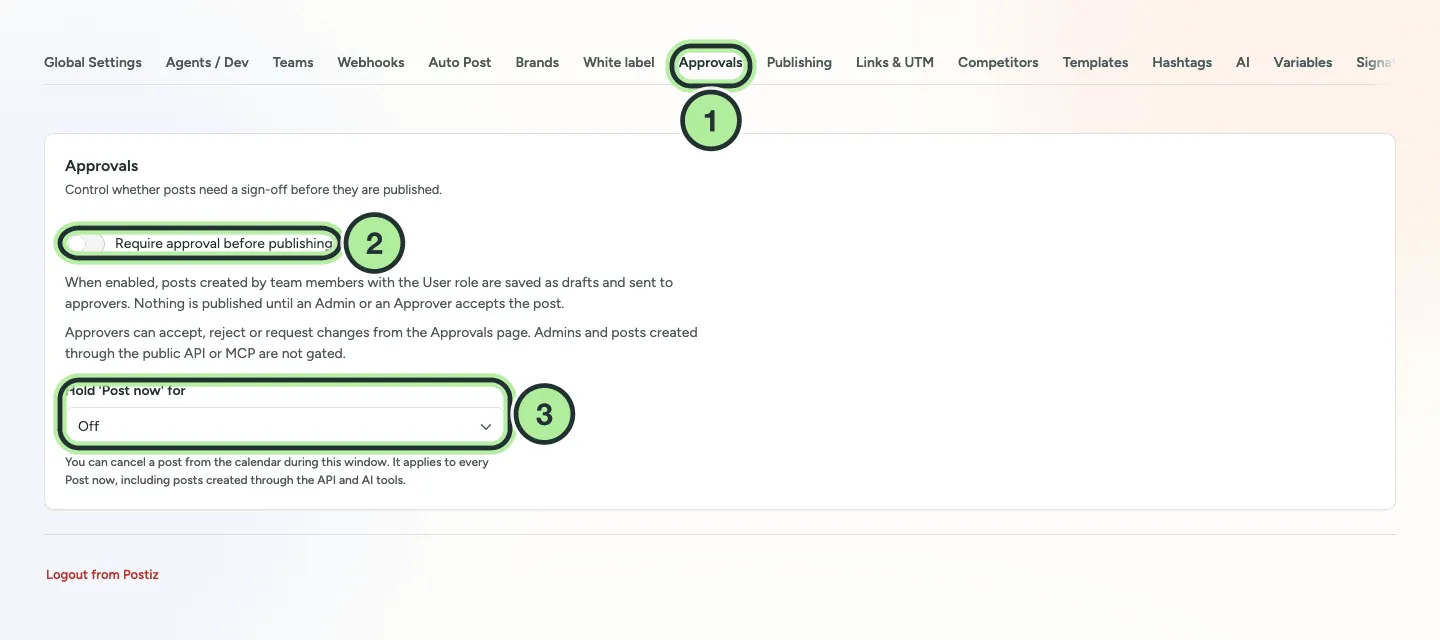
- Settings → Approvals.
- Require approval before publishing.
- Hold ‘Post now’ for: the undo window.
From now on, posts by people with the User role go to approval instead of being scheduled. Admins, and posts created through the API or AI connectors, skip approval.
Submit a post
Section titled “Submit a post”When approvals are on, Users see Submit for approval in the composer. The post is saved and sent to the approvers.
Review posts
Section titled “Review posts”-
Open Approvals in the top bar. The tab shows a count when posts are waiting.
-
Pick a post in Pending. Open it in the composer if you want to look closer.
-
Choose:
- Approve: the post is scheduled for its date.
- Request changes: send it back with a note.
- Reject: decline it with a note.
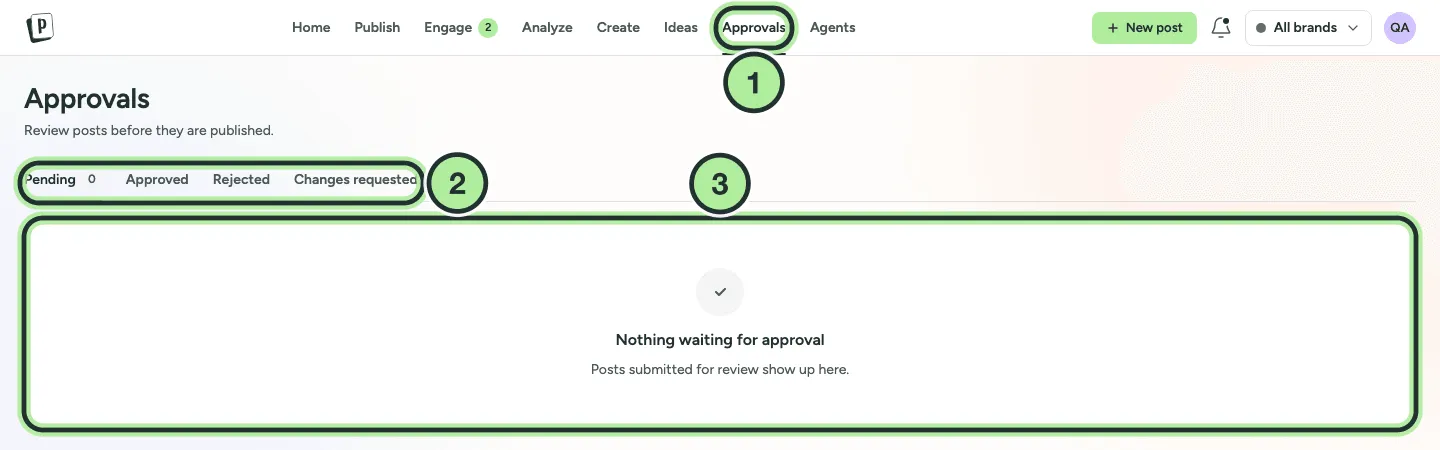
- Approvals in the top bar.
- Pending, Approved, Rejected and Changes requested.
- Posts waiting for you appear here.
The author can fix the post and Resubmit. Other tabs show Approved, Rejected and Changes requested posts.
Who can approve
Section titled “Who can approve”- Workspace Admins and Clients.
- People with the Manager or Approver role on that post’s brand.
Every step is recorded in the post’s Activity.