Edit photos and trim videos
Edit a photo
Section titled “Edit a photo”-
In the media library, open a photo’s menu and select Edit (or Edit photo from the composer’s media settings).
-
Use the tools along the side:
- Crop: aspect ratio Free, 1:1, 4:5, 16:9 or 9:16, rotate and flip.
- Adjust: filters, brightness, contrast, saturation and blur.
- Text: add text with size, weight, alignment, a background pill and your brand colours.
- Stickers: emoji, shapes, or Add brand logo watermark.
-
Use Undo and Redo as you go.
-
Select Use image to put it in your post, or Save to media to keep a copy in the library.
Trim or crop a video
Section titled “Trim or crop a video”-
In the media library (or the composer’s media settings), select Trim on a video.
-
Drag the Start and End handles. Select Play selection to check.
-
Optional: choose a crop: Original, 1:1, 4:5, 9:16 or 16:9.
-
Select Create trimmed copy. The original stays in the library and the trimmed copy is added next to it.
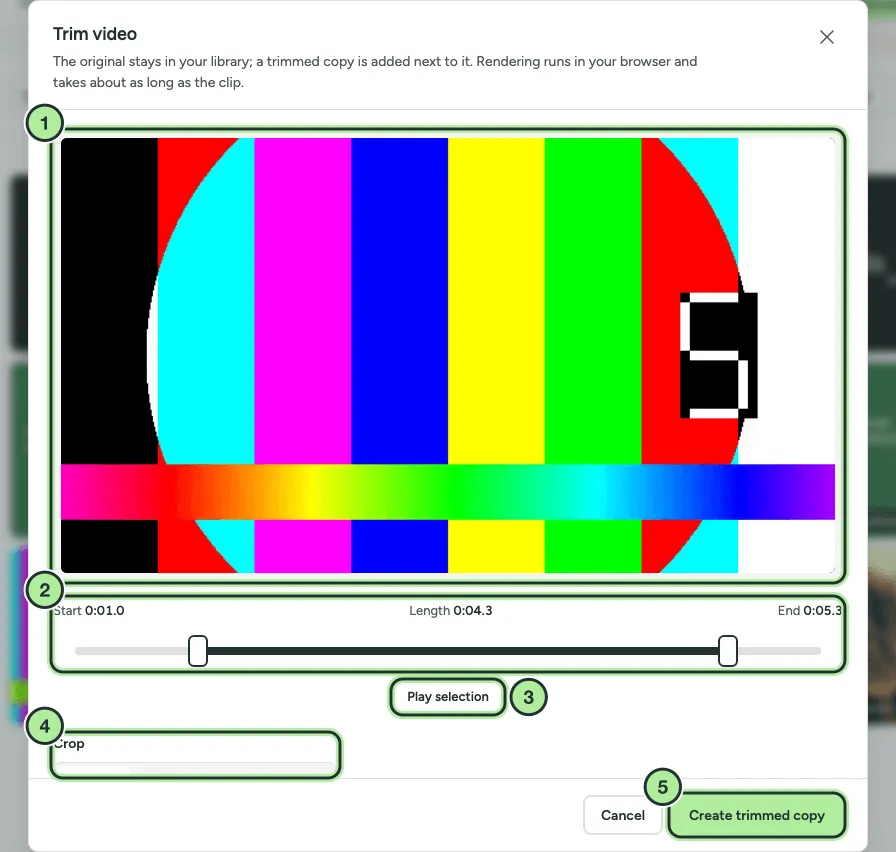
- The video preview.
- Start, Length and End, and the two handles.
- Play selection.
- Crop.
- Create trimmed copy.