Variables and spintax
Variables
Section titled “Variables”A variable is a placeholder like {{website}} that PostNimbo swaps for the real value when the post is published. Change the value once and every scheduled post picks it up.
Create a variable
Section titled “Create a variable”-
Go to Settings → Variables.
-
Enter a Key (lowercase letters, numbers,
_and.), for exampleshop.link. -
Enter the Value and choose a Scope: Organization, Brand or Channel.
-
Save.
If the same key exists at several scopes, the most specific one wins: channel beats brand, brand beats organization. That lets you use one post with a different link per brand or per channel.
Use a variable
Section titled “Use a variable”In the composer, select Insert variable and pick one.
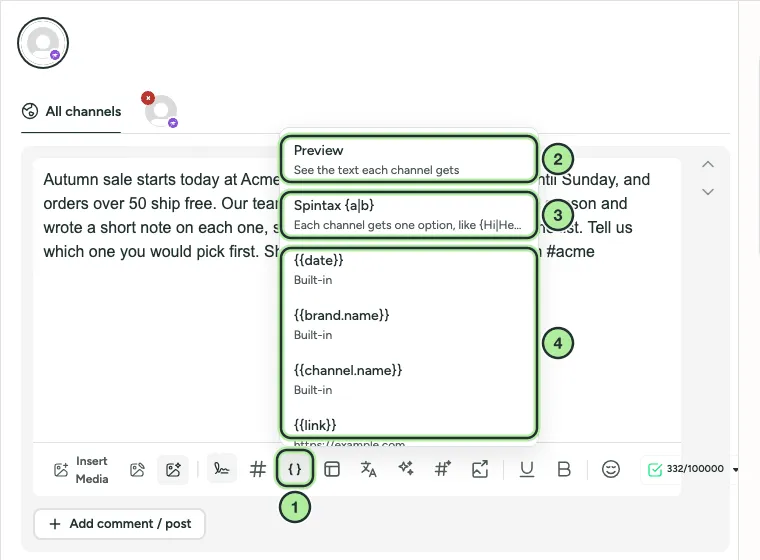
- Insert variable (the
{ }button). - Preview: see the text each channel gets.
- Spintax: inserts
{a|b}. - Your variables, plus three built in:
{{date}}(publish date),{{brand.name}}and{{channel.name}}.
Select Preview to see the final text each channel will get.
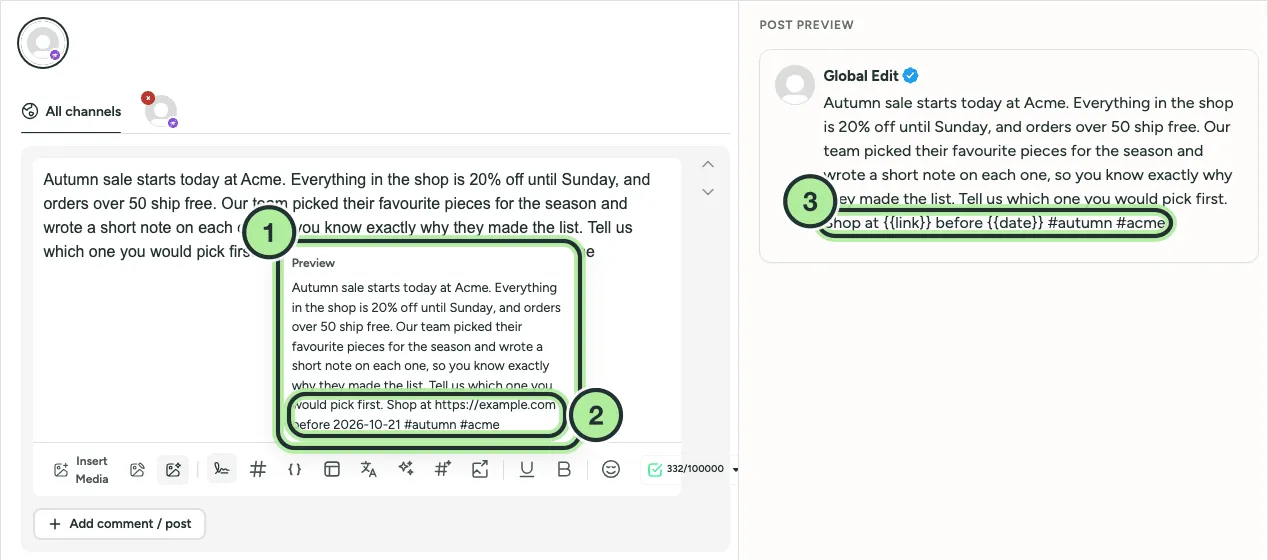
- The Preview for the selected channel.
{{link}}and{{date}}replaced by their values.- The post preview keeps the placeholders until the post is published.
Spintax
Section titled “Spintax”Spintax lets each channel get slightly different wording. Write the options in curly brackets, separated by |:
{Hi|Hello|Hey} everyone, our sale starts {today|this morning}!
Each channel gets one option, picked when the post is published. The preview shows how many variants there are. One level of nesting is supported. To show a real curly bracket, type \{.