Media library, folders and alt text
Everything you upload is kept in your media library, under Create in the top bar. In the composer, select Insert Media to open it.
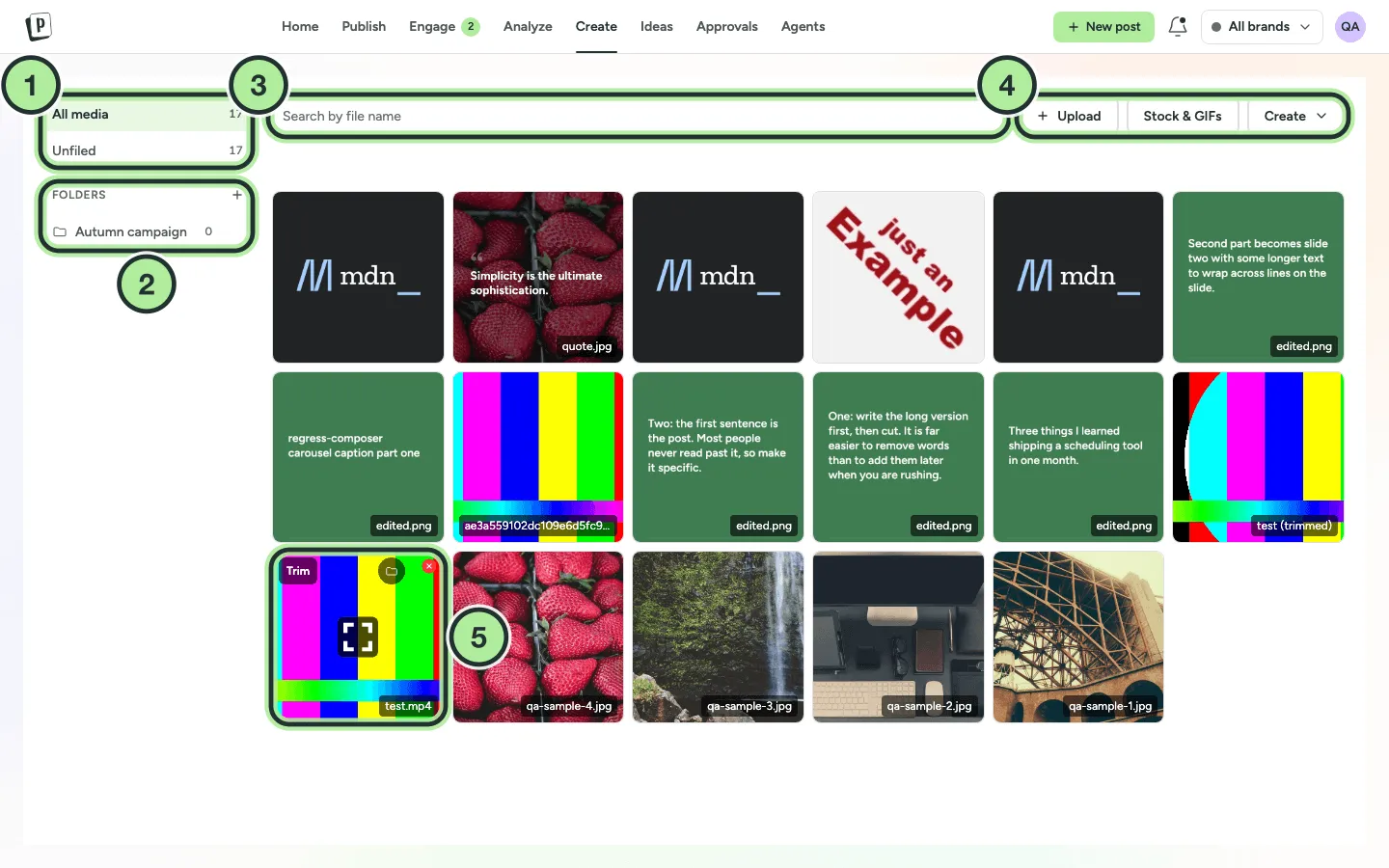
- All media and Unfiled.
- Folders. Select + to add one.
- Search by file name.
- Upload, Stock & GIFs and Create.
- Hover a file for its actions, such as Trim on a video.
Upload
Section titled “Upload”Drag files onto the library or select Upload.
- Images: PNG, JPG, GIF, WEBP, up to 30 MB each.
- Videos: MP4, MPEG, MOV (QuickTime), up to 1 GB each.
Organise with folders
Section titled “Organise with folders”- Select + next to Folders in the sidebar and name the folder. Folders can go three levels deep (New sub folder).
- Select one or more files, then Move to… to file them.
- Unfiled shows everything not in a folder. Use Search by file name to find a file.
- Deleting a folder moves its files up one level. No media is deleted.
Add alt text
Section titled “Add alt text”Alt text describes an image for people using screen readers.
-
Add the image to your post.
-
In the composer, open Media Settings → Thumbnails & alt text.
-
Click the image and fill in Alt Text (for accessibility).
For videos you can pick a thumbnail in the same place (main post only).
Stock photos and GIFs
Section titled “Stock photos and GIFs”In the media picker, select Stock & GIFs to search Unsplash, Pexels and GIPHY. The image is saved to your library with the photographer’s credit in its alt text.
Edit before you post
Section titled “Edit before you post”Photos can be cropped, adjusted and decorated, and videos trimmed, right in the library. See Edit photos and trim videos.