Calendar views
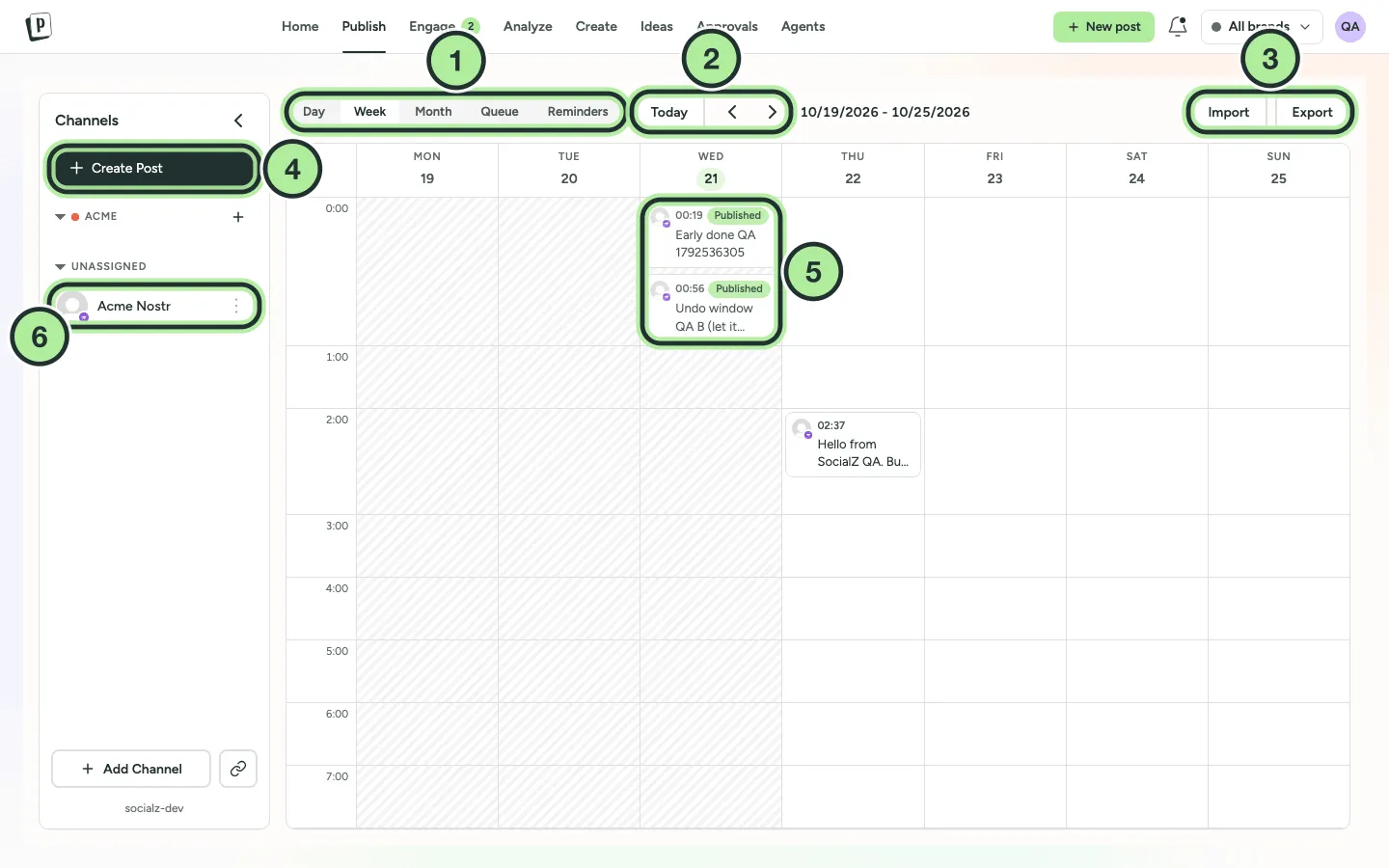
- The view switcher.
- Today, Previous and Next.
- Import and Export.
- Create Post.
- A post. Its badge shows Published, Scheduled or Draft. Drag it to reschedule.
- A channel. Its ⋯ menu has time slots, pause and more.
The view switcher at the top of the Publish page has five views:
| View | Best for |
|---|---|
| Day | A detailed look at one day, hour by hour. |
| Week | Planning the week ahead. |
| Month | The big picture. |
| Queue | A list of upcoming posts grouped by day, with free slots. See Queue and posting times. |
| Reminders | Posts you’ve chosen to publish by hand. See Publish via reminder. |
Use Today, Previous and Next to move around.
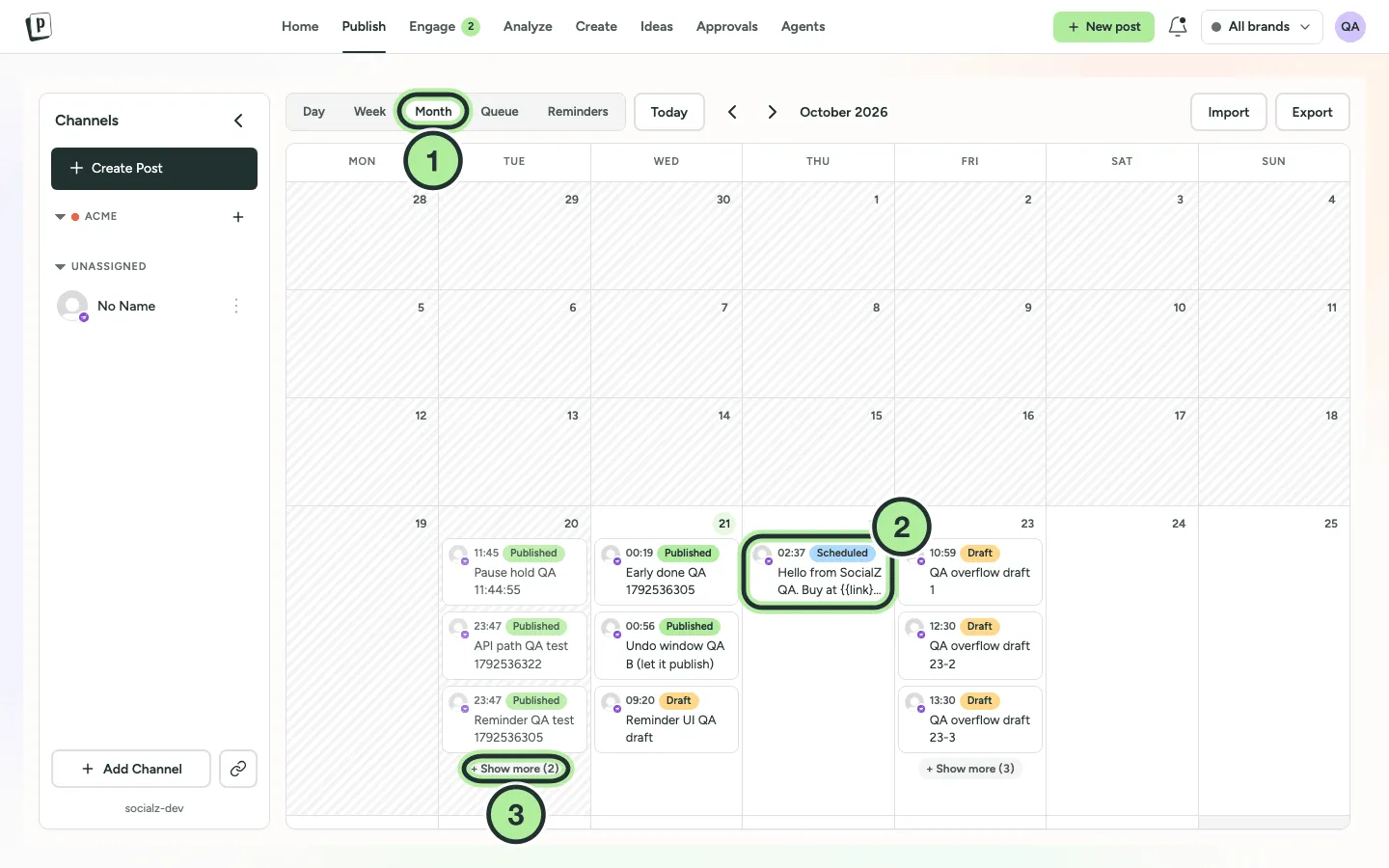
- Month view.
- A scheduled post. Click it to open it.
- Show more on days with many posts.
Filter what you see
Section titled “Filter what you see”- Pick a brand in the brand switcher to see only its posts.
- Use Select Channels to show only some channels.
- Use the Customers selector (shown when no brand is selected).
Reschedule by dragging
Section titled “Reschedule by dragging”Drag a post to a new slot in the Day, Week or Month view. You can’t drop onto a time that has already passed. If the post was already published, or its reminder already sent, PostNimbo asks you to confirm.
See a post’s history
Section titled “See a post’s history”Open a post’s menu and select Activity to see who created, edited, rescheduled, approved or published it, and when.