Create and schedule a post
At a glance
Section titled “At a glance”Every post follows the same path: you write it once, it waits in the queue (after an approval, if your workspace uses them), and PostNimbo publishes it at the set time. If a network rejects it, PostNimbo can try again for you.
The composer
Section titled “The composer”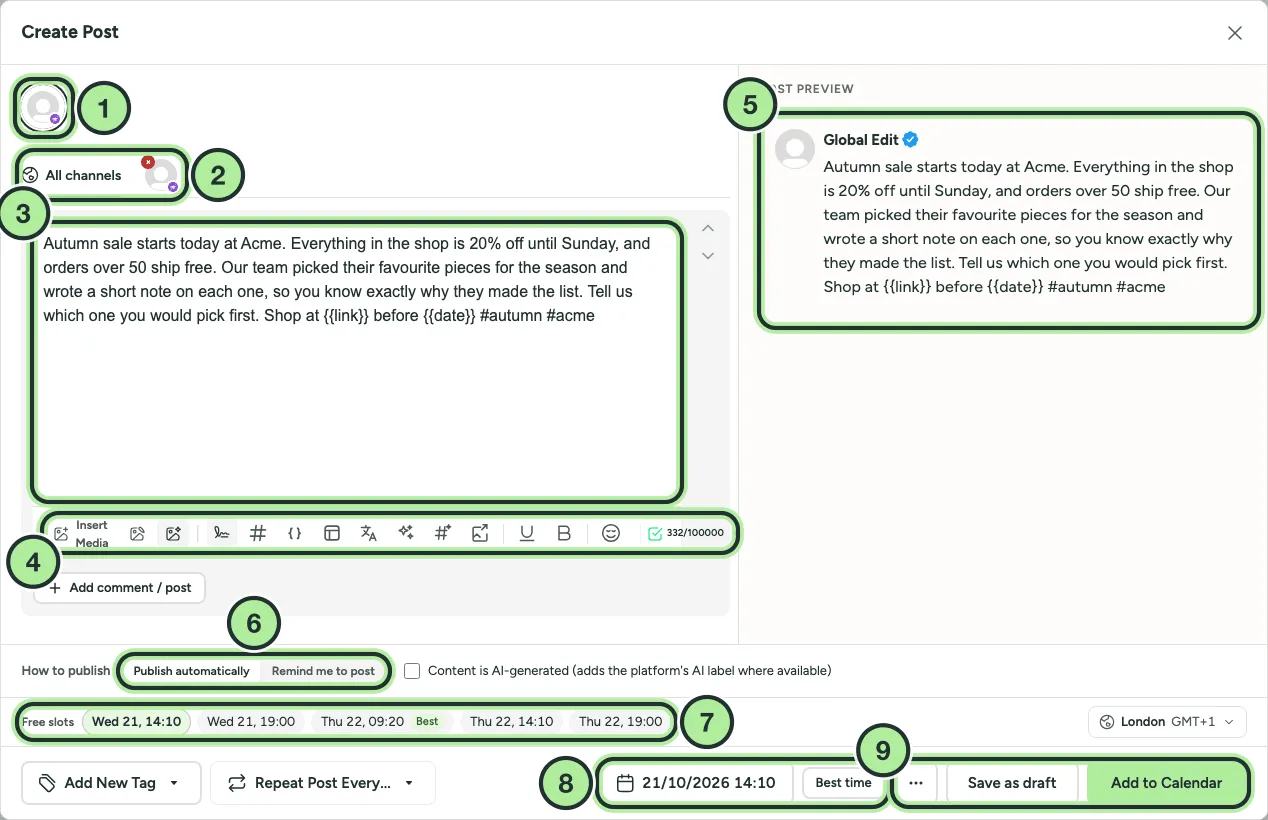
- Channel avatars: click to choose where the post goes.
- All channels and one tab per channel, to customise a channel.
- The editor.
- The toolbar: media, hashtags, variables, templates, AI tools and the character counter.
- The preview for the selected network.
- How to publish: automatically, or remind me to post.
- Free slots: the next open posting times of the selected channels. Best marks the one closest to the suggested best time.
- The date and time, and Best time.
- ⋯ (Post Now and more), Save as draft and Add to Calendar.
Schedule a post
Section titled “Schedule a post”-
Select New post (the + in the top bar), select Create Post on the Publish page, or click an empty slot in the calendar.
-
If your workspace has templates, pick one or select Continue without set.
-
Click the channel avatars (1) to choose where the post goes. A selected brand shows as Posting as ….
-
Write your post in the All channels tab (3). Add media with Insert Media. The preview (5) shows how it will look on each network.
-
Open the date picker and choose a date and time, click one of the Free slots, or select Best time for a suggested slot.
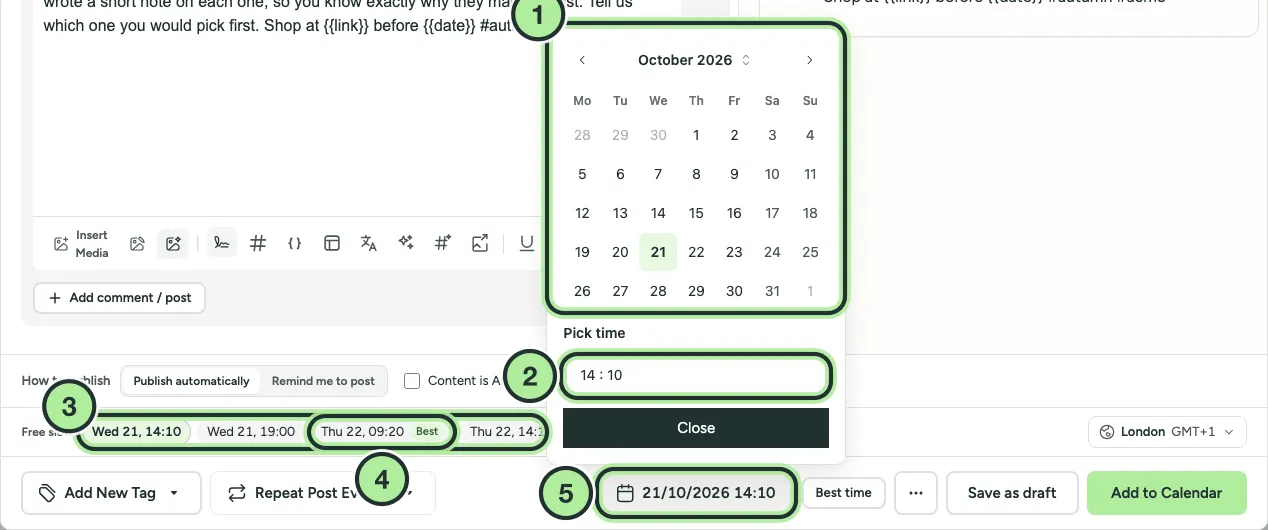
- Pick the day.
- Set the time, then Close.
- Or click a free slot from your channel’s posting times.
- Best marks the free slot closest to the next suggested best time.
- The chosen date and time.
-
Select Add to calendar. The post is scheduled and appears in the calendar and queue.
Other ways to save
Section titled “Other ways to save”- Post Now (in the ⋯ menu next to the date): publishes straight away. Your workspace may hold it for a short undo window first.
- Save as Draft: keeps it without scheduling. See Drafts and autosave.
- Submit for approval: shown when your workspace requires approval. See Approvals.
- Remind me to post: get a reminder to post it yourself instead of publishing automatically. See Publish via reminder.
Posting to several channels
Section titled “Posting to several channels”If a post goes to more than one channel and you choose Post Now, Schedule or Draft, PostNimbo asks whether to apply it to all channels or only the one you’re looking at.
Editing a post later
Section titled “Editing a post later”Click the post in the calendar or queue. The button reads Update for a scheduled post and Schedule for a draft. If the post is already published, PostNimbo asks whether to just update the post details in PostNimbo or republish the post.