Overview and KPIs
At a glance
Section titled “At a glance”Analyze collects your channels’ numbers once a day and compares them with the period before. The same engagement data drives the best-time suggestions you see when scheduling.
The Overview tab
Section titled “The Overview tab”Open Analyze in the top bar. The Overview tab is the summary of all your channels.
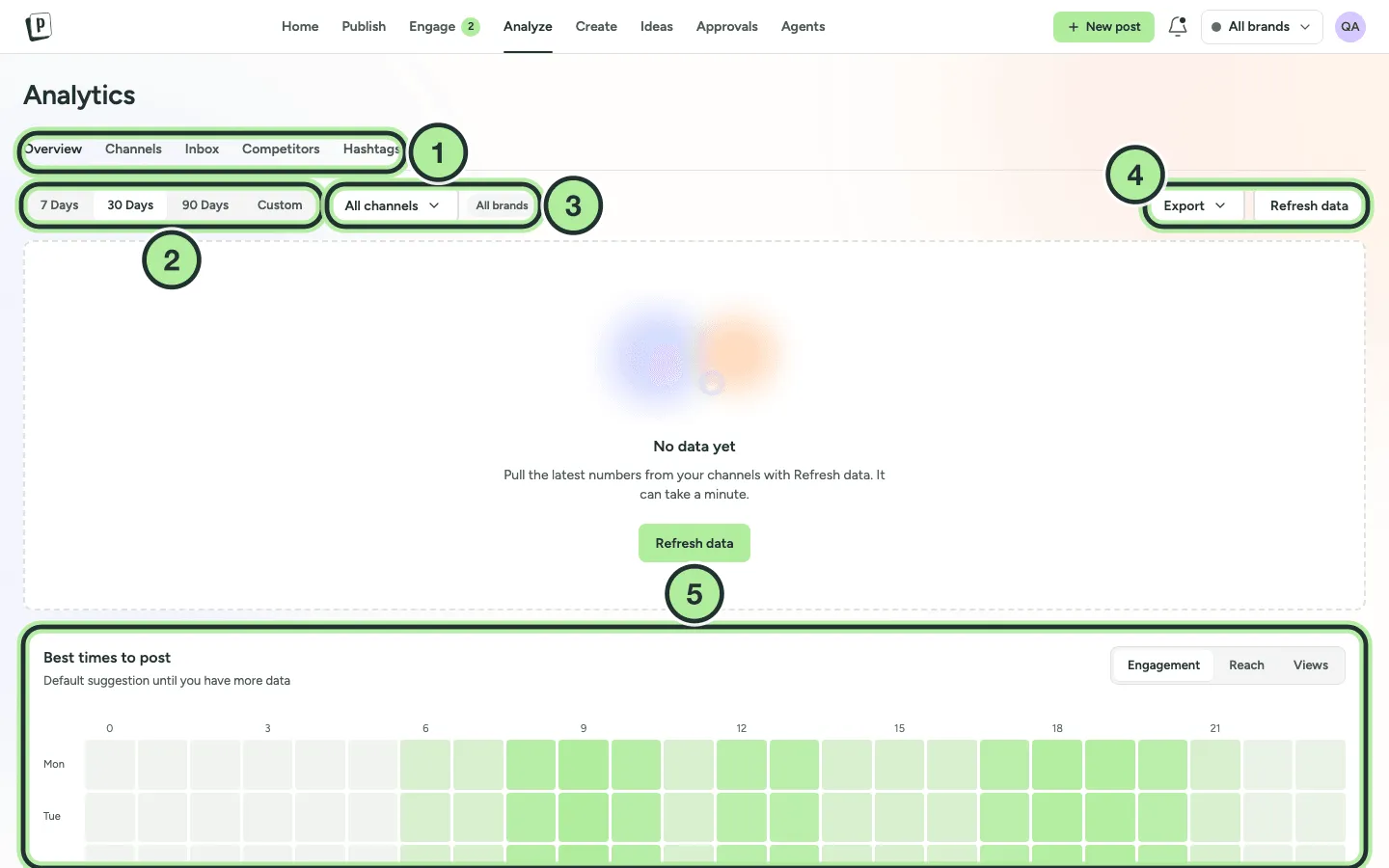
- Overview, Channels, Inbox, Competitors and Hashtags.
- The period: 7 Days, 30 Days, 90 Days or Custom (start and end date).
- All channels or one channel. The brand follows the brand switcher (All brands or one brand).
- Export and Refresh data.
- The best times heat map.
Until the first numbers arrive, the cards area says No data yet. Select Refresh data to fetch them now.
KPI cards
Section titled “KPI cards”Each card shows a total for the period and the change vs previous period. Depending on your networks you’ll see metrics such as:
Followers, New followers, Impressions, Reach, Views, Engagement, Likes, Comments, Shares, Saves, Clicks and Watch time, plus Posts published.
Not every network reports every metric. For example, a network that doesn’t share reach won’t add to the Reach card.
Below the cards
Section titled “Below the cards”- A chart for any metric, by day or by week.
- A channels table comparing your channels.
- Top posts.
- The best times heat map.
The Channels tab has a detailed view per channel. Competitors, Hashtags and Inbox have their own pages: Competitors, Hashtags, Inbox reports.