Invite your team and set roles
-
Go to Settings → Teams and select Add another member.
-
Enter their email address and choose a role: Admin, User or Client.
-
Keep Send invitation via email? on to email them, or turn it off and select Copy Link to share the invite yourself.
-
They open the link, create an account (or sign in) and join your workspace.
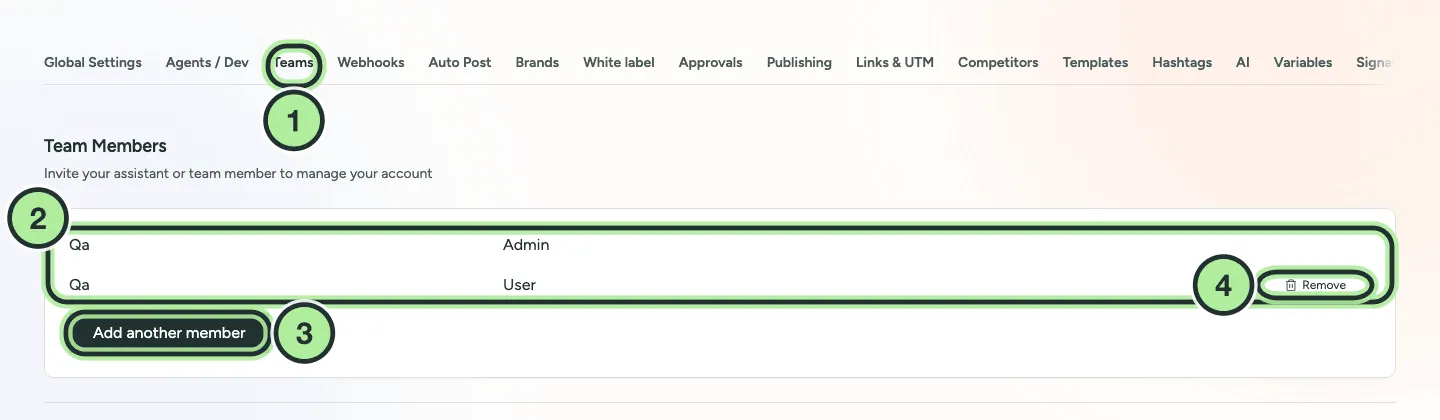
- Settings → Teams.
- Your members and their roles.
- Add another member opens the Add Member form.
- Remove someone.
Workspace roles
Section titled “Workspace roles”| Role | What they can do |
|---|---|
| Admin | Everything, including billing, team, brands, white label, approvals and publishing settings. |
| User | Create and schedule posts, use the inbox and analytics. Can’t see Teams, Brands, White label, Approvals settings or Billing. If approvals are switched on, their posts need approval first. |
| Client | Reviews and approves posts. Doesn’t see Settings or Billing, and isn’t assigned inbox conversations. |
Brand roles
Section titled “Brand roles”You can also add a person to specific brands (Settings → Brands → Members). Someone with a brand role only sees the brands they’re added to.
| Brand role | What it adds |
|---|---|
| Manager | Can approve that brand’s posts. |
| Approver | Can approve that brand’s posts. |
| Editor | No extra rights. Limits what the person sees to that brand. |
| Client | No extra rights. Limits what the person sees to that brand. |