Settings at a glance
At a glance
Section titled “At a glance”Open your avatar (top right) and select Settings. The tabs you see depend on your role and plan: people with the User role don’t see Teams, Brands, White label or Approvals, and only admins see Publishing and Links & UTM.
| Tab | What it’s for | Guide |
|---|---|---|
| Global Settings | Two-factor authentication, timezone, email notifications, short links | Below, and Account and notifications |
| Teams | Invite people and set roles | Invite your team |
| Brands | One workspace per client or business | Brands |
| White label | Your logo, colours and domain | White label |
| Approvals | Review before publishing, undo window | Approvals |
| Publishing | Automatic retries for failed posts | Failed posts and retries |
| Links & UTM | Tag every link for your analytics | Links and UTM tags |
| AI | Your brand voice for the AI tools | AI writing tools |
| Calendar feed | Your schedule in Google or Apple Calendar | Calendar feed |
Signing in is the first thing to protect. With two-factor authentication on, a password alone isn’t enough:
Two-factor authentication
Section titled “Two-factor authentication”Two-factor authentication asks for a code from an authenticator app on your phone after your password. It applies to email and password sign-ins.
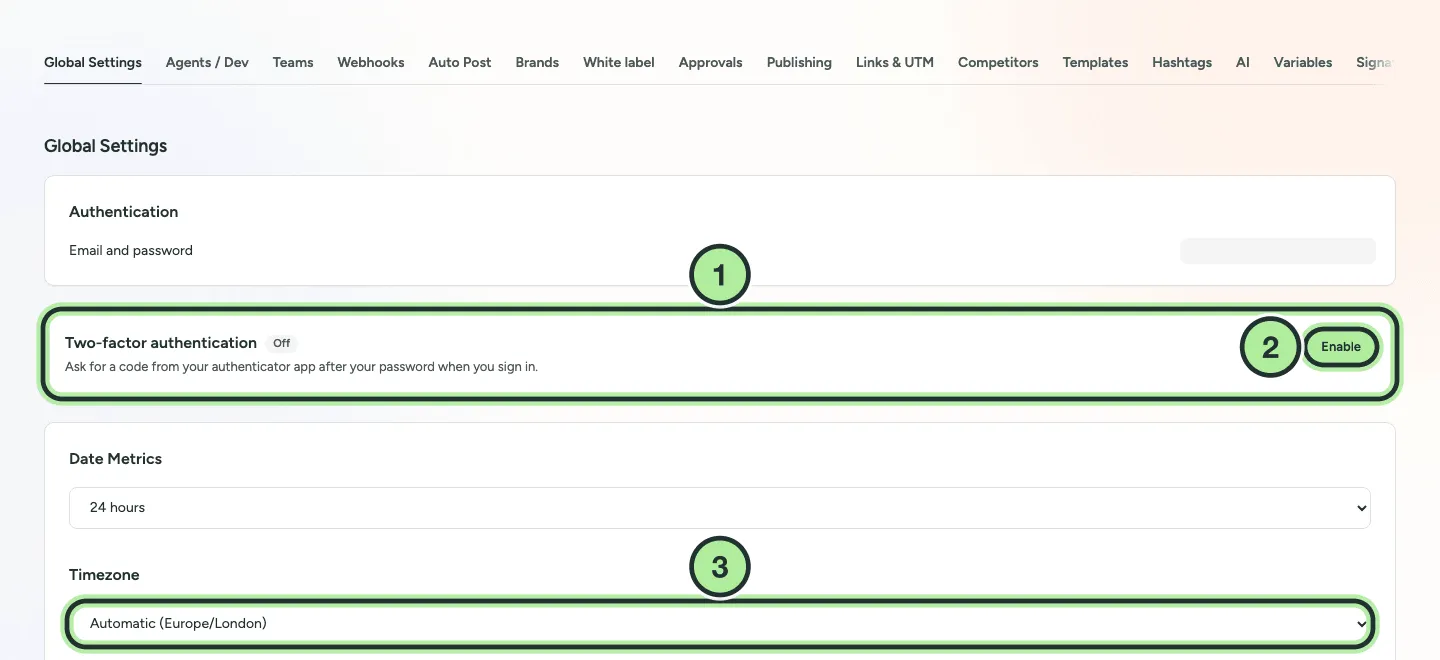
- The Two-factor authentication card shows On or Off.
- Enable starts the setup.
- Timezone: every date you pick uses it.
-
Go to Settings → Global Settings and select Enable on the Two-factor authentication card.
-
Scan the QR code with an authenticator app such as Google Authenticator, 1Password or Authy (or enter the key by hand).
-
Enter the 6-digit code the app shows and select Verify and enable.
-
Save the recovery codes somewhere safe, then select I saved them. Each code signs you in once if you lose your phone, and they’re not shown again.
To turn it off, select Turn off on the card and enter a code from your app or a recovery code.